Patient Attachments
|
There are two places in the EHR that deal with patient attachments:
You can use these two tabs to manage a variety of attachments including patient forms, patient consents, and other, miscellaneous attachments.  Work with Patient Forms Work with Patient Forms
All electronic forms that have been completed for and by a patient, such as a Medical History form, are stored in the EHR > Forms tab. Typically, a Medical History form is the default form displayed in the tab, so you can easily scroll down and review the information and update as necessary. Note: While you can view forms in the Attachments/Consents tab of the EHR, generally you will use the Forms tab to view and manage forms. While working in the EHR, you will most commonly need to review or add patient forms. Work with Patient Consents
Consent forms are used in axiUm to record a patient’s acceptance of a variety of things including treatment(s), things required during the course of treatment, requests to release information, etc. After they are completed, consent forms are attached to the patient record. If a consent form is missing, the Consent Required indicator displays on the status bar.
View Missing Consents (from the EHR)
Add Patient Consents
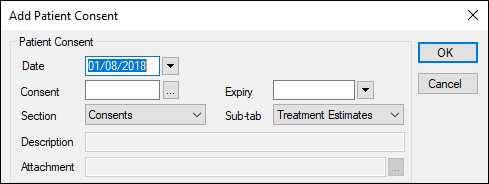
If a consent form is missing for a patient, you can choose to add one. Tip: Typically, most institutions will configure axiUm to lock a patient's chart to providers if a consent form is missing. It will remain locked until the correct consent is added. Signed initials may be required for each page in a patient consent in addition to full signature(s). If made required, each page must be initialed in an Initials window after being viewed and before the entire consent can be signed. If initials are not part of the form, a Signature window displays as usual. To add a patient consent:
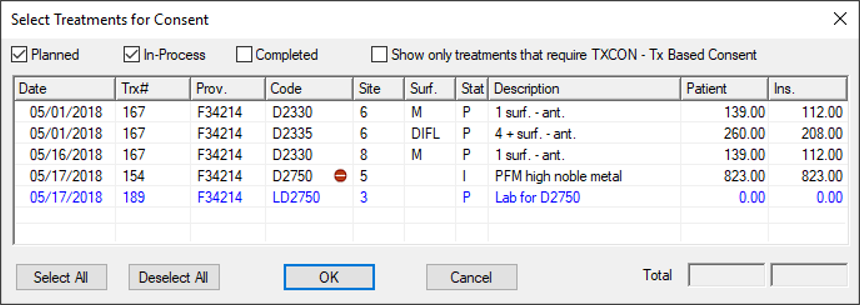
For consents that are treatment-based, the Select Treatments for Consent window displays.
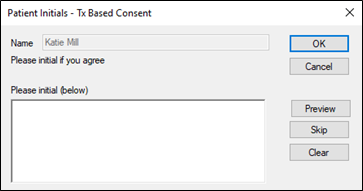
Tip: Click the Select All or Deselect All buttons to make your selections quickly. The consent displays. Example: Representative’s relationship to patient (if applicable). If patient initials are configured, the Patient Initials window displays. Note: For consents that don’t require initials, the Patient Signature window displays immediately instead. Tip: You can click Preview to view the consent page or entire form again.
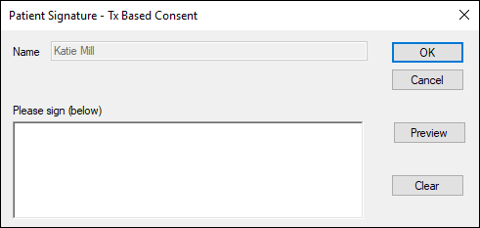
Note: If the initials are optional for the page, you can click Skip. The Patient Signature window displays.
Tip: You can click Preview to view the entire consent form. Example: A Witness Signature window. Work with Other Attachments
In addition to forms and consents, other types of attachments are accessible in the EHR module > Attachments/Consents tab. These include:
When working in the Attachments/Consents tab, you can view, add, and manage these attachments as necessary. |

 ) icon and select View Missing Required Consents… to display the Consent List window.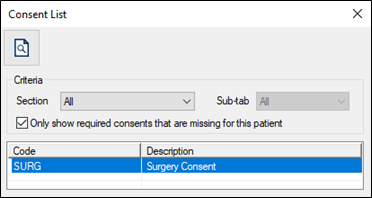
 ) icon.